The POS setup includes a lot of data, some of this data is standard and some of it is unique to each installation. To simplify the data setup the system has features to assist the POS setup user, making the configuration of the POS easier and faster.
These features are:
- The Import Export Worksheet
- The Where Used action
- The Create New From action
- Moving lines up and down.
The Import Export Worksheet: To import and export setup data
It is possible to export selected data from a company and then import it into another company in the same database or another database.
The tool to do this is the Import Export Worksheet or LS Import Export WS.
This tool exports the selected data into an XML file and imports the data from the XML file. The user has to make sure to be active in the company the data is being exported from and imported to.
The POS setup data for retail recommended to be imported from the Demo Data is:
- Interface Profile ##DEFAULT
- Menu Profile ##DEFAULT
- Functionality Profile ##DEFAULT
- Hardware Profile ##DEFAULT
- Style Profile ##DEFAULT
- POS Commands
- POS Tag, all tags
- POS Data Table, all tables
- Scheduler Job Header, all jobs
- WS Request, all data
- POS Context Menu, all data
Optional import data:
- Other profiles which exist in the Demo Data Company
- POS Search IndexTable
- Hospitality and KDS data, if needed.
All this data can then be adjusted to fit the customer’s requirements.
Tip: When setting up a new company in LS Central, import the relevant POS profiles from the demo data company as you like. It might be easier to build the new POS from some of the existing profiles.
To open the Import Export Worksheet tool
- Click the
 icon, enter LS Import Export WS, and select the relevant link.
With this tool it is possible to export and import different POS Setup Data.
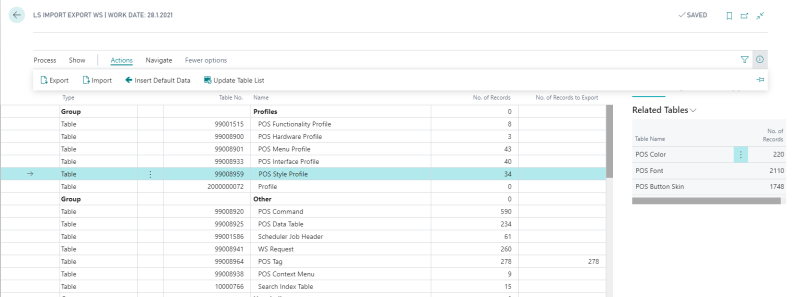
To export data
- Be active in the company the data is being exported from.
- Open the LS Import Export WS page.
- Select the group line which is going to be exported.
- Most of the records to be exported need to be selected before they can be exported. To do so, go to the No. of Records to Export field, open the drop down list, select the Export check box for one or more profile for each profile to export.
Note: Click the Select All action to select all records. - On the LS Import Export WS page, click Actions - Export.
- An XML file is created in your Downloads Windows folder.
Tip: For most of the options, the user selects check boxes for the individual records to export. The No. Of Records to Export field displays the number of selected profiles. You can either select individual records for exporting or use the Select All action for all data.
Note: The export tool exports the selected data table and all of its related tables as is displayed in the Related Tables window.
Tip: It is possible to export and import group of options, for example if you want to export all the profiles select the profiles to export, be active in the Profiles line and finish by selecting action Export. Similarly it is possible to import the different groups of data.
To import data
- Be active in the company the data is to be imported to.
- Open the LS Import Export WS page.
- Be active in the group line data to receive the imported data.
- Click Actions - Import.
- Click the Choose button to open a Windows Explorer window where you can select the folder containing the import file.
- Select the folder where the XML file is located.
- Select your file, and click the Open button.
- The system asks if you want to overwrite existing records. Click Yes or No, depending on your wishes.
- The imported XML file is read into its data tables.
Tip: If you reply with a No, you can import new data only .
Update Table List for the Import Export Worksheet
When the program is updated, you may need to update the table list for the Import Export Worksheet:
- Click Actions - Update Table List in case more Groups options have been imported for the worksheet.
The Where Used action
The Where Used action is very useful in locating where POS setup data is being used.
With this action it is possible to
- Display a list of all places where the POS object is used in the POS setup data
- Allows the user to view the page where the POS object is used and edit it
The Where Used action is displayed like this  .
.
The Where Used action is available for these POS objects:
- Profiles, all types
- Button Skins
- Fonts
- Color Setup
- POS Commands
- Panels
- Button Pad Control
- Data Grid Control
- Input Control
- Record Zoom Control
- Media Controls
- Browser Controls
- Menus
- Data Tables
- Tags
- Context Menus
- Retail Images
Example: Where Used for a Functionality Profile:
- Open the Functionality Profile List.
- Select the line with Profile ID #DEMO.
- Use the Where Used action.
- The Where Used window opens:
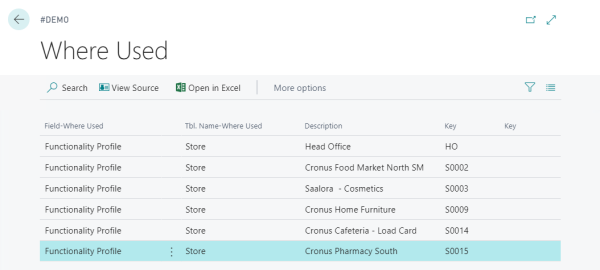
- The Where Used window lists all the options where the selected profile ID has been input.
- By selecting one of the Where Used lines it is possible to open the source by using the View Source action for the line.
- The relevant option then opens and the user can then view and/or edit it.
The Create New From action
For most of the POS objects, the action Create New From is available. This action copies the current object into a new one that you give the desired name.
Up and Down for lines
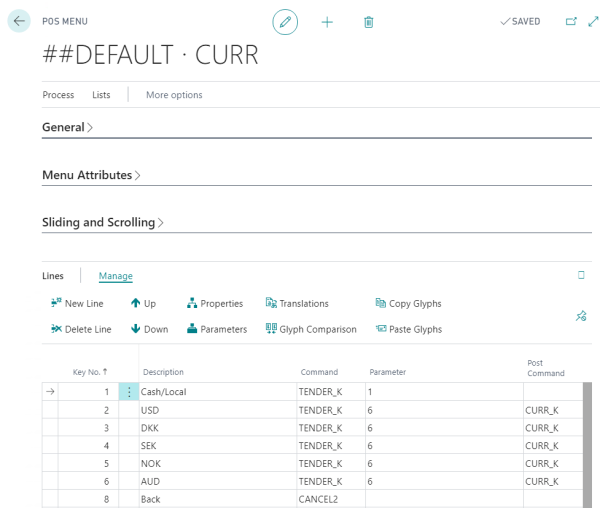
The Up and Down feature is used for moving lines up and down. This is available for example for Menu Lines, Panel Lines, and POS Data Table Lines.
The Up and Down buttons look like this:

Note:You can only select to move one line at a time.
Example: The Currency menu:
To move lines within a menu:
- Be active in the line.
- Press the Down or Up action as many times as needed to replace the line.