How to: Send to KDS with Option to Hold and Rush
You can send orders to the KDS and specify how many minutes they should be held before displaying them on the display stations.
For example, if you select 20 minutes to hold the main courses (after you have sent the starters right away to the KDS), the main courses will appear on the KDS after 20 minutes, just as they would, if the staff manually sent them 20 minutes after the starters.
In the same manner you can rush the order to the KDS and then it goes in front of the line. There are permission settings for the Rush command in Staff Permissions and Staff Permission Groups.
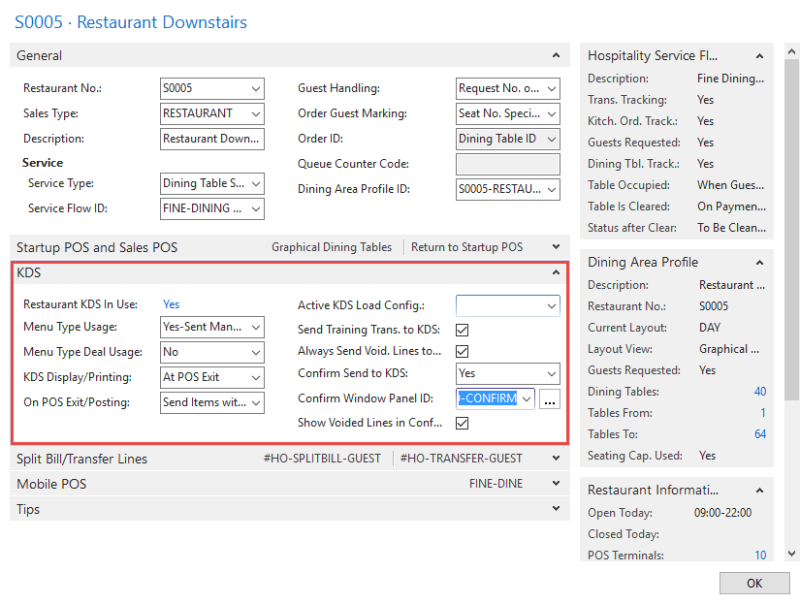
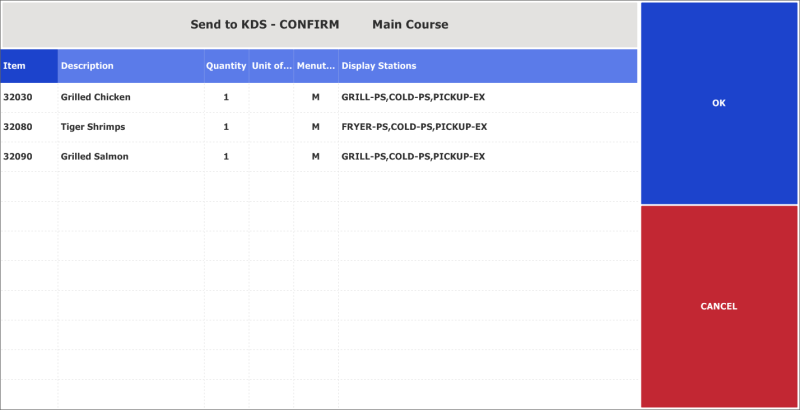
When the Confirm Send to KDS field is set, the system displays a window with the lines that are going to be displayed or printed along with the stations they will appear on or be printed on. The staff can press OK to send the items to the KDS, or press Cancel to postpone sending the items to the KDS.
In this Confirmation panel, you can optionally have the KITCHEN_HOLDINKDS command. This command works well if you are sending orders to the KDS by menu type. The staff can select for how many minutes the order lines displayed in the window will be held from appearing in the KDS, before pressing OK.
Note: This does not apply to order lines sent to a printer station. Those are always printed immediately.
There is also the RUSH option that gives the order lines top priority when sent to the KDS. The command KITCHEN_RUSHINKDS is used for rushing the KOT. If the KOT is sent to a printer station, ** RUSH ORDER ** is printed on the chit.
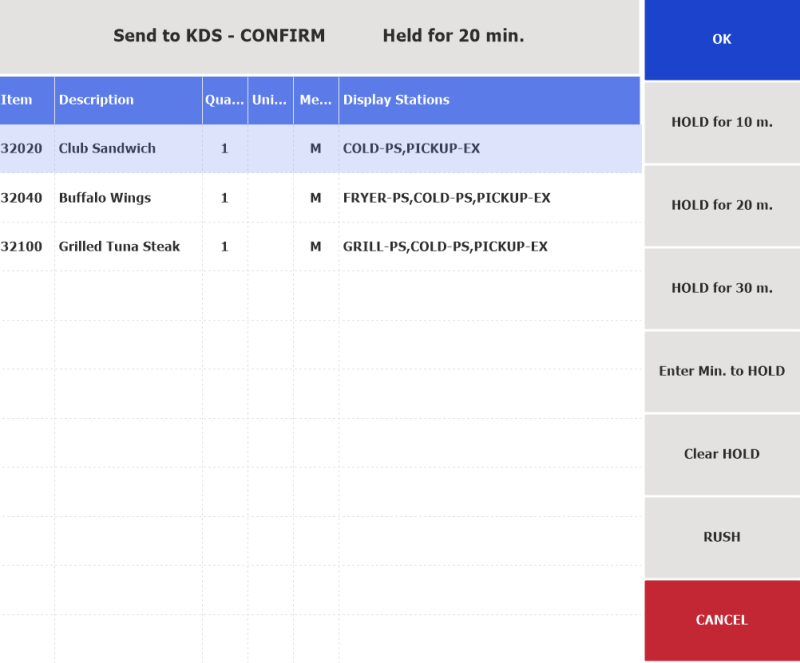
You can adjust the function menu on the panel to your restaurant's needs.
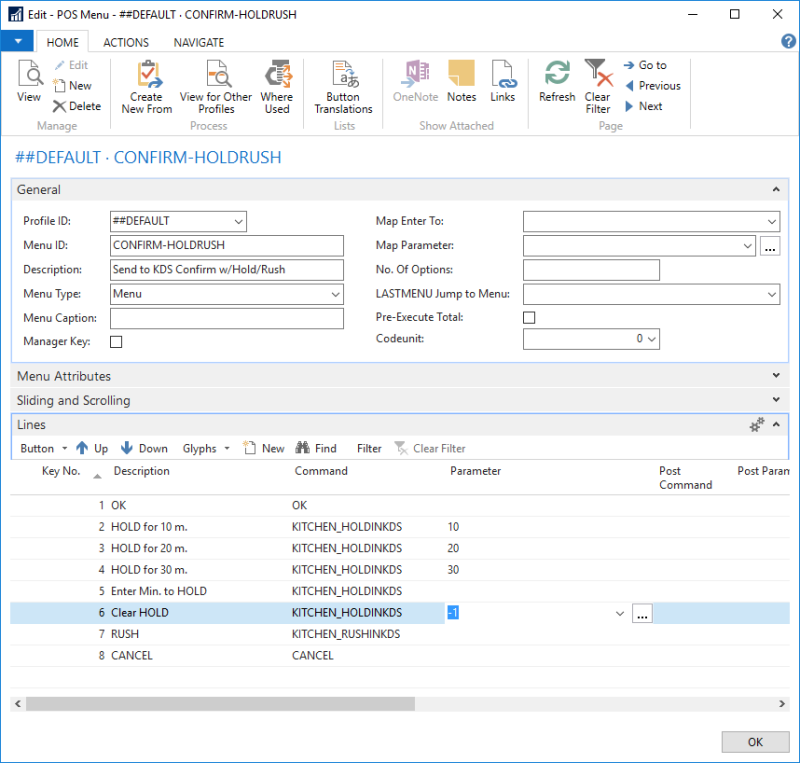
The parameters for the KITCHEN_HOLDINKDS command work like this:
- No parameter – Brings up the numeric pad where the waiter inserts the exact number of minutes he or she wants to hold the order. Maximum minutes to hold an order in the KDS is set in Hospitality Setup.
- Positive number – The exact minutes the order will be held. When the button is pressed, HELD FOR # Min. appears in the header of the panel.
- Negative number – Clears the minutes to hold.
There is no parameter with the KITCHEN_RUSHINKDS command.
Tip: The demo data offers four panels for the confirmation window, three with the KITCHEN_HOLDINKDS command, and one without; #HO-CONFIRM-HOLD, #HO-CONFIRM-RUSH, #HO-CONFIRM-HOLDRUSH and #HO-CONFIRM.
Rushing an order already sent to the kitchen
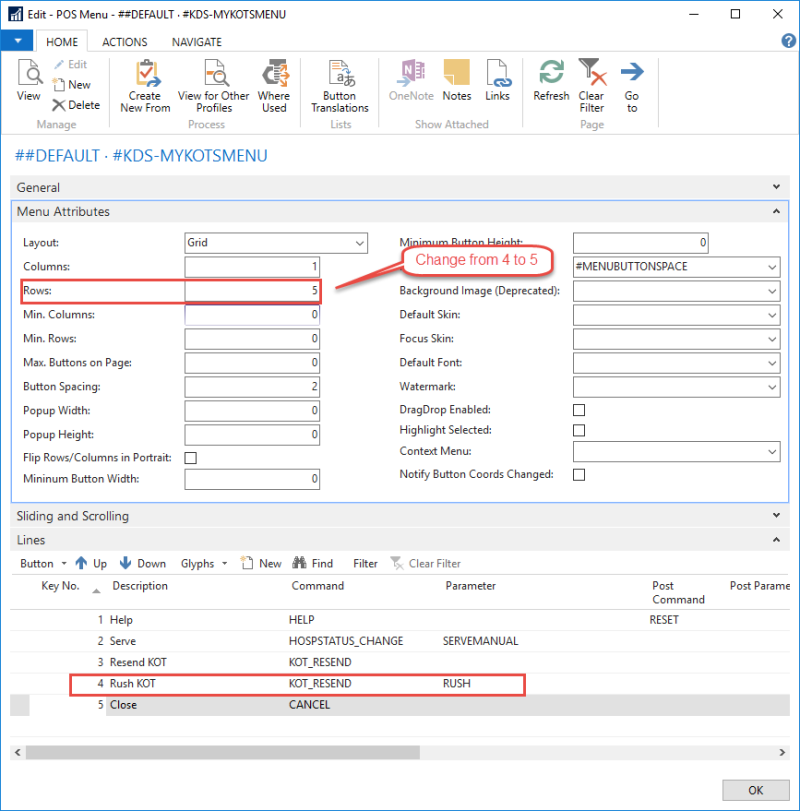
You can RUSH an order to the KDS by pressing the Rush KOT button on the KDS Order Kitchen Status panel. If the KOT is sent to a printer station, ** RUSH ORDER ** is printed on the chit.
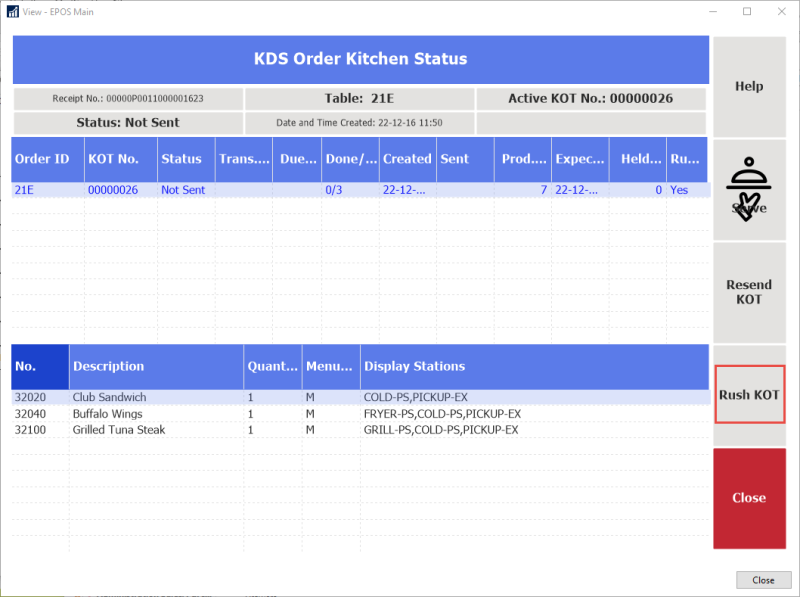
Here is how the menu is set up for the KDS Order Kitchen Status panel:
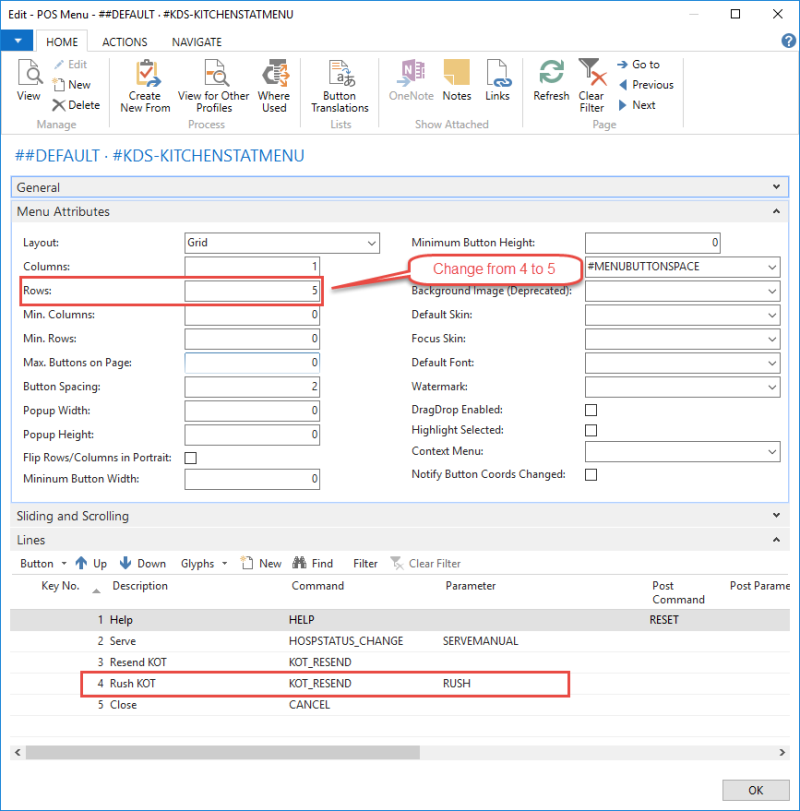
In the same manner as in the KDS Order Kitchen Status panel, you can rush the order in the KDS Staff KOTs Status panel. Here is how the menu is setup for that panel: